
A venue screen can do more than repeat a promotional loop. It can also give the audience a shared place to participate. CAP Live Chat Wall connects a room accessed from a phone with messages presented on an LED display, while keeping moderation and screen controls in the operator’s workflow.
Layar venue bisa menjadi ruang partisipasi bersama, selain menayangkan konten promosi. CAP Live Chat Wall menghubungkan room yang diakses melalui ponsel dengan pesan pada layar LED, sementara moderasi dan kontrol layar tetap berada dalam alur kerja operator.
Start with the audience journeyMulai dari alur pengunjung
The audience journey begins with a QR code and a room entry page. Guests choose a nickname and avatar before composing a message. Reactions and photo submissions provide additional ways to participate. This separation matters: the phone interface should stay easy to use while the public display remains readable from a distance.
Perjalanan pengunjung dimulai dari QR dan halaman masuk room. Pengunjung memilih nickname serta avatar sebelum menulis pesan. Reaction dan pengiriman foto memberi pilihan partisipasi tambahan. Pemisahan antarmuka ini penting: halaman ponsel perlu mudah digunakan, sedangkan display publik harus terbaca dari jarak yang lebih jauh.
Participation needs a review process. The application provides approval, rejection and highlight actions, alongside moderation settings. These controls give the venue a way to manage content before or during its appearance on the shared screen. A moderation policy still needs an assigned operator and clear rules for the event.
Partisipasi membutuhkan proses review. Aplikasi menyediakan tindakan approve, reject, dan highlight, bersama pengaturan moderasi. Kontrol tersebut memberi venue cara mengelola konten sebelum atau ketika tampil di layar bersama. Kebijakan moderasi tetap membutuhkan penanggung jawab operator dan aturan yang jelas untuk acara.
Design for the LED displayRancang untuk layar LED
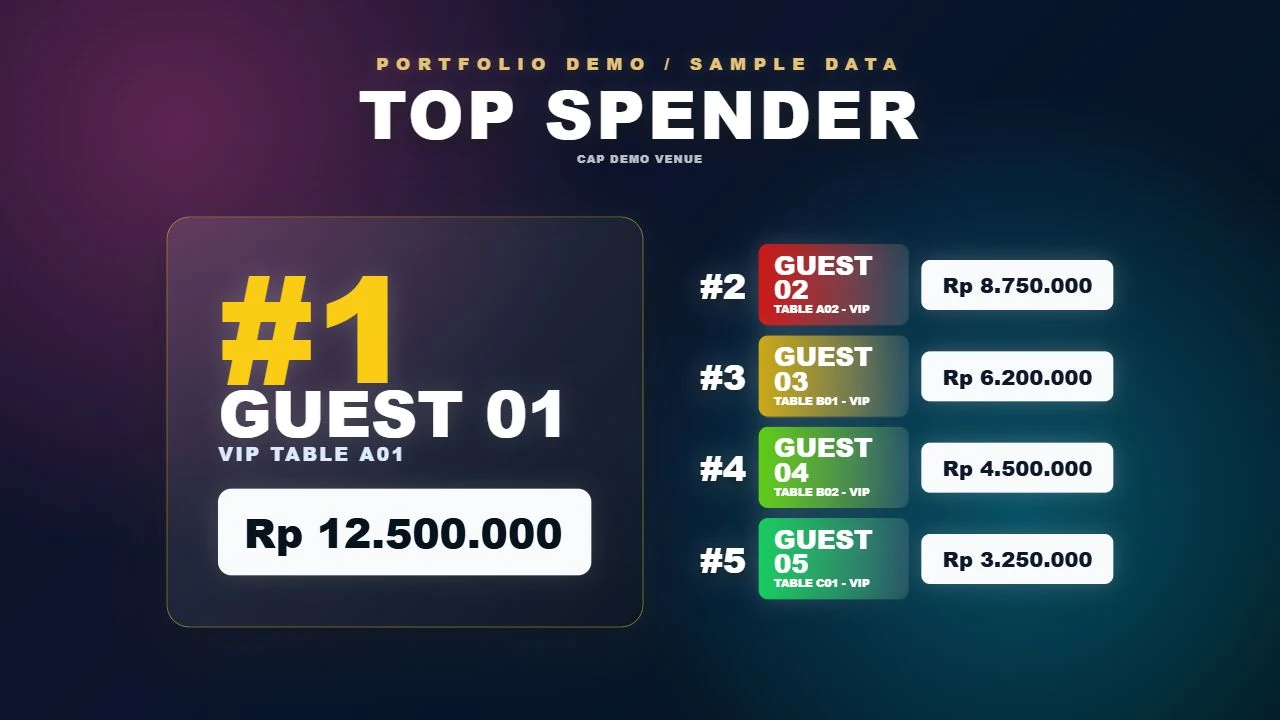
The LED presentation has its own requirements. CAP Live Chat Wall includes landscape, chat-wall and other layout options, configurable dimensions and screen presentation settings. A design that works on a phone cannot simply be enlarged and assumed to work across a venue. Text size, message density and QR placement need to suit the actual screen and audience positions.
Presentasi LED memiliki kebutuhan tersendiri. CAP Live Chat Wall menyediakan layout landscape, chat wall, dan pilihan lain, dimensi yang dapat diatur, serta pengaturan presentasi layar. Desain ponsel tidak cukup hanya diperbesar untuk seluruh venue. Ukuran teks, kepadatan pesan, dan posisi QR perlu mengikuti layar serta posisi penonton yang sebenarnya.
Screen controls cover more than displaying the latest messages. The application contains standby, blackout, announcement, countdown and highlight functions, with polling and winner features available within its room tools. Choosing which elements to show is part of preparing a session, so a display does not become crowded with every feature at once.
Kontrol layar mencakup lebih dari sekadar pesan terbaru. Aplikasi memiliki fungsi standby, blackout, announcement, countdown, dan highlight, serta alat polling dan winner di dalam pengelolaan room. Menentukan elemen yang ditampilkan menjadi bagian persiapan sesi agar display tidak dipenuhi semua fitur sekaligus.
Keep operations and history connectedHubungkan operasional dan riwayat
Daily audience periods and historical records serve different purposes. A new operating period can change which content is active without requiring deletion of the previous conversation history. The application also provides room reports and CSV exports. For venue operations, the useful question is what should remain visible now and what should remain available for later review.
Periode harian pengunjung dan riwayat memiliki fungsi berbeda. Periode operasional baru dapat mengubah konten yang aktif tanpa harus menghapus riwayat percakapan sebelumnya. Aplikasi juga menyediakan laporan room dan ekspor CSV. Bagi operasional venue, yang perlu diputuskan adalah konten yang terlihat sekarang dan data yang tetap tersedia untuk review.
The screenshots in this article are rendered from the actual application templates using sample messages. Guest names are fictional, and the documentation QR links to the portfolio rather than an active audience room. The images explain the product interface; they do not represent a live customer conversation or a measured increase in engagement.
Screenshot artikel ini dirender dari template aplikasi asli dengan pesan contoh. Nama pengunjung bersifat fiktif, dan QR dokumentasi mengarah ke portfolio, bukan room aktif. Gambar menjelaskan antarmuka produk; gambar tersebut tidak mewakili percakapan pelanggan asli atau kenaikan engagement yang telah diukur.
Plan the complete workflowRencanakan alur lengkapnya
For a similar project, begin with the audience entry journey, the moderation responsibility and the physical display. Then define the room’s operating period, reporting needs and visual priorities. The CAP Live Chat Wall portfolio shows how these parts can be brought together as a venue application that supports the operator as well as the audience.
Untuk proyek serupa, mulai dari perjalanan masuk pengunjung, tanggung jawab moderasi, dan layar fisik yang dipakai. Lalu tentukan periode operasional room, kebutuhan laporan, dan prioritas visual. Portfolio CAP Live Chat Wall memperlihatkan hubungan antarbagian tersebut dalam aplikasi venue yang mendukung operator sekaligus pengunjung.